
OpenAI Codex is a cloud-based coding agent that can read your entire codebase, plan multi-file changes, and execute them — all inside an isolated sandbox. It’s powerful for autonomous coding tasks: you assign work, it runs in the background, and you review the results.
But like every coding agent, Codex only knows what’s in your repository. Your internal API documentation, product specifications, compliance requirements, and architecture decisions? They live outside the codebase. And without them, Codex is left making assumptions where it should be referencing your actual specs.
The fix: connect Codex to an external knowledge base via MCP, so it can query your company’s documentation autonomously whenever it needs context.
Here’s how to set it up with Lookio in under 5 minutes.
Why Codex needs external knowledge
Codex runs your tasks in a cloud sandbox. It has full access to your repo — the code, the tests, the configs — but nothing beyond that. This means:
- Internal API docs — endpoint schemas, authentication flows, expected payloads — aren’t accessible unless they’re committed to the repo
- Product requirements — the business logic behind a feature, edge cases, acceptance criteria — live in Notion, Confluence, or Google Docs
- Regulatory and compliance docs — GDPR constraints, industry standards, security policies — are stored separately
- Architecture Decision Records — why patterns were chosen, what was tried and abandoned, historical context — often scattered across wikis
Without this context, Codex writes code that compiles but doesn’t comply. It follows syntax, not specs.
What MCP gives Codex
MCP (Model Context Protocol) is the standard that lets AI agents discover and use external tools. When you connect a Lookio MCP server to Codex, the agent can autonomously:
- Query your knowledge base — ask questions against your uploaded documents and get precise, sourced answers
- Manage resources — add, list, or remove documents from your workspace
- Manage assistants — create or configure assistants with specific instructions and resource access
This happens within Codex’s normal execution flow. No context switching, no manual copy-pasting — Codex decides when it needs external knowledge and retrieves it.
Set it up in 3 minutes
Step 1: Prepare your knowledge base in Lookio
Create a free Lookio account if you haven’t already (100 free credits, no credit card).
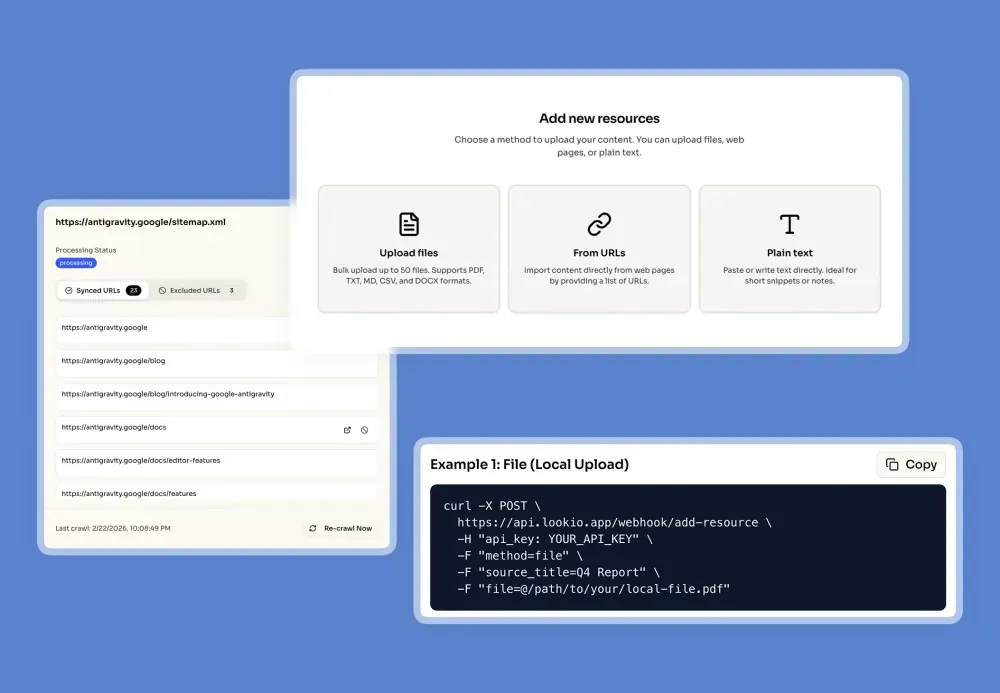
Upload the documentation you want Codex to access:
- Files — PDFs, DOCX, TXT, Markdown (API specs, product docs, compliance guides)
- URLs — individual pages or full website sitemaps for automatic syncing
- Text — paste raw content directly (architecture decisions, internal notes)
Then create an assistant with context instructions like:
“You are a technical documentation assistant for [Company]. Provide precise answers based on the provided documentation. Always cite the source document. If the information isn’t in the docs, say so.”
Step 2: Get your API key
In Lookio, go to API Settings → create a new API key. Copy it.
Step 3: Add the MCP server to Codex
Codex uses TOML for its configuration (unlike most other tools that use JSON). You have two options:
Option A: CLI command (fastest)
codex mcp add lookio-mcp https://api.lookio.app/v1/mcpThen edit the config file to add your API key header (see Option B).
Option B: Edit the config file directly (recommended)
Open ~/.codex/config.toml (global) or .codex/config.toml (project-level) and add:
[mcp_servers.lookio-mcp]
url = "https://api.lookio.app/v1/mcp"
headers = { "api_key" = "YOUR_API_KEY" }
Scope options:
~/.codex/config.toml— global, available across all projects.codex/config.toml— project-specific, can be committed and shared with your team
For company-wide docs (API references, compliance), use global config. For project-specific documentation, use project scope.
Step 4: Verify
Run codex mcp list to confirm Lookio is connected. Then start a Codex task and ask it to query your knowledge base:
“Before implementing the payments webhook handler, query the Lookio assistant for the expected payload format and authentication requirements.”
Codex will use the MCP tools to retrieve the relevant documentation and apply it to its implementation.
Codex’s cloud sandbox + MCP: a unique advantage
Here’s something specific to Codex: because it runs in a cloud sandbox, it can execute tasks in the background while you work on other things. This changes how MCP integrates compared to interactive agents like Claude Code.
With Codex, you can:
- Assign a task with a prompt that references your knowledge base
- Walk away — Codex runs autonomously in its sandbox, querying Lookio MCP when it needs specs or context
- Review the result — come back to a PR-ready implementation that was informed by your actual documentation
This makes MCP even more valuable for Codex than for interactive agents, because you’re not there to manually paste documentation during execution. The agent must be able to find it autonomously.
Write a system prompt that leverages Lookio
Unlike Claude Code’s “skills” (markdown files), Codex uses a system prompt to guide behavior. You can instruct Codex to use Lookio systematically by adding instructions to your prompt:
When implementing or modifying features:

1. Before writing code, query the Lookio knowledge base (use flash mode)
   to check for relevant API specs, product requirements, or architecture
   decisions for the area you're working on.

2. When the query returns documentation, reference it in your implementation
   and add code comments citing the source.

3. If implementing a new API endpoint, query for existing endpoint patterns
   and naming conventions to maintain consistency.

4. After implementation, query for compliance or security requirements
   that apply to the feature area.

Default query mode: flash
This turns every Codex task into a documentation-informed implementation, not just a code-informed one.
Use cases for Codex + Lookio MCP
Autonomous implementation with specs
The strongest use case. Assign Codex a feature implementation task and it will:
- Query your API docs for the correct endpoint schemas before writing integration code
- Check product requirements for business logic rules and edge cases
- Pull compliance constraints before handling sensitive data
- Verify naming conventions and patterns from your architecture docs
Code review with context
Ask Codex to review a PR against your documentation:
“Review this PR and check whether the implementation matches the product spec for the discount calculation feature. Query the Lookio assistant for the relevant requirements.”
Bulk documentation-driven refactoring
Assign Codex a refactoring task informed by updated specs:
“Our authentication flow has changed. Query Lookio for the new auth spec, then update all services that interact with the auth module to match the new contract.”
Query modes: match cost to task
When Codex uses Lookio MCP, control which query mode it uses through your system prompt:
- Eco Mode (1 credit, ~14s): Simple lookups — “What’s the expected format for this endpoint?” Perfect for Codex since it runs async and doesn’t need sub-second responses.
- Flash Mode (3 credits, ~8s): Balanced speed and intelligence — the default choice for most development queries.
- Deep Mode (20 credits, ~25s): Complex research across multiple documents — use for architecture decisions or cross-cutting concerns.
Pro tip: Since Codex runs in the background, response time matters less than with interactive agents. You can default to Eco mode to optimize costs without impacting your workflow — you’re not waiting for the answer in real-time anyway.
Quick setup summary
| Step | What to do | Time |
|---|---|---|
| 1. Lookio account | Sign up free, upload your docs | 3 min |
| 2. API key | Create in Lookio → API Settings | 30 sec |
| 3. MCP config | Add to ~/.codex/config.toml | 1 min |
| 4. Verify | Run codex mcp list | 10 sec |
| 5. System prompt (optional) | Add Lookio query instructions | 5 min |
From there, every Codex task has autonomous access to your company’s full knowledge base — even when you’re not watching.